

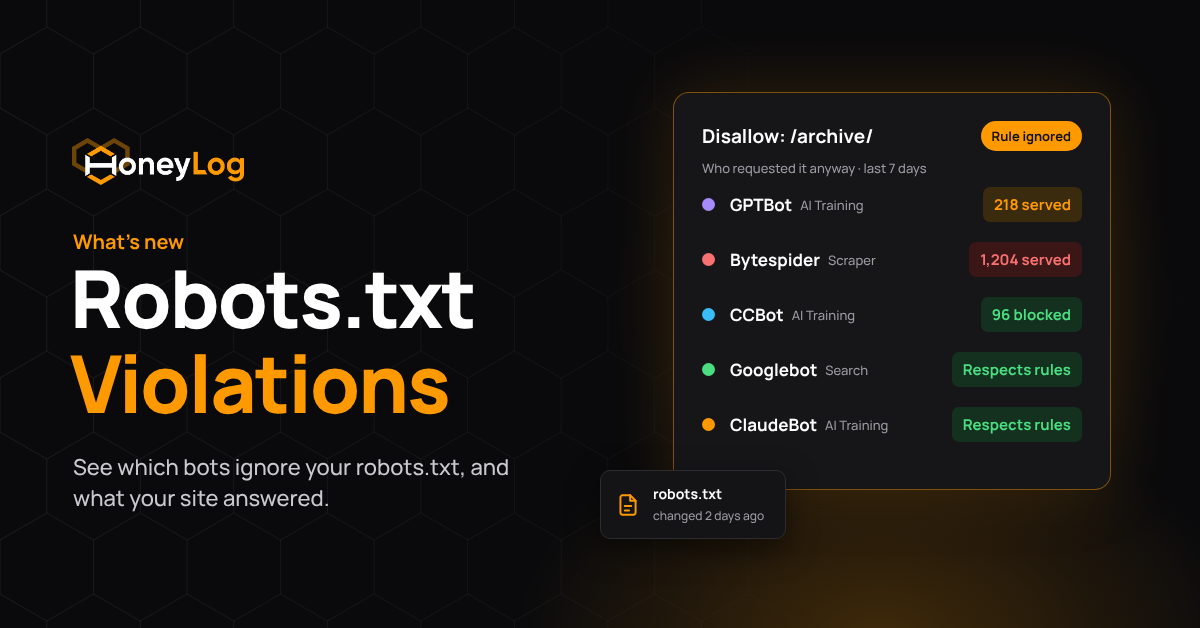
Is anyone actually respecting my robots.txt?
Imagine you have disallowed GPTBot from your login, paywall or pricing pages, yet your client-side analytics keep showing strange traffic on those URLs. A robots.txt tells crawlers which pages they may request, which makes it the foundation of your crawling strategy: it protects your crawl budget and keeps private and premium content out of AI datasets. The file, however, is only a request, and nothing warns you when a bot ignores it.
Tracking violations closes that gap. HoneyLog checks every bot request in your server logs against the robots.txt that was live at that moment. This article explains how to use the new Robots.txt Violations report, together with Overview, Rules Explained and Version History.
Robots.txt: what your file says, and who reads it
HoneyLog fetches your robots.txt once a day, in the morning of your site’s timezone. The Overview page shows three things:
- The file itself: its status (Found, No robots.txt or Unreachable), its full content and the time of the last check. Admins can hit Check now to fetch the live file.
- Who reads it: the daily bot hits on /robots.txt over the last 7 days, and the bots that request it most.
- Crawlers in robots.txt: one card per user agent named in the file, plus the * wildcard, with its Allow, Disallow and Crawl-delay rules. Badges flag the bots that are new, removed or changed since the previous version.
Use case:
A Friday release accidentally removes the robots.txt, leaving every crawler free to access sections you had closed. Instead of noticing weeks later, the team sees No robots.txt on Monday morning, or right after the deploy with Check now, and restores the file within the hour.
Violations: who ignores your rules
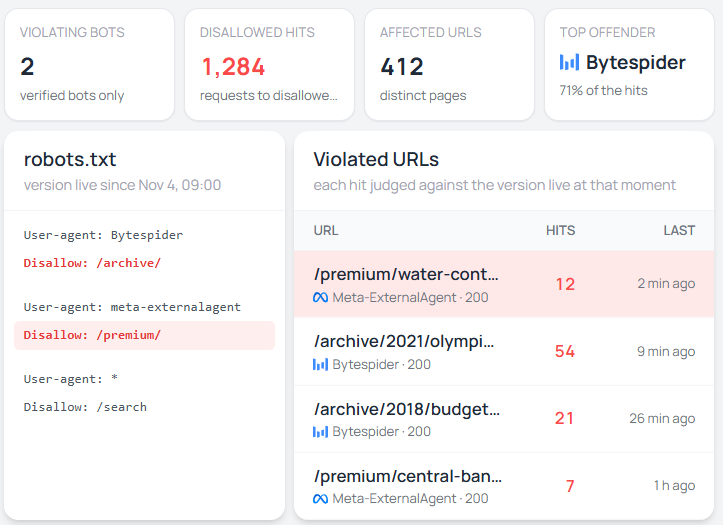
A violation is any request for a page your robots.txt disallows to that bot. HoneyLog judges each one against the version of the file that was live at that moment, so a rule added today never turns last week’s crawls into violations. Every page follows the date picker and hostname selector in the header.
Overview
Four numbers sit at the top: violating bots, disallowed hits, affected paths and the top offender. Below, a chart plots the disallowed hits over time, with a dashed marker on every change to your robots.txt. A doughnut shows the status codes your site returned to violating bots, and a table lists each bot with its violations by status code and the last time it checked your robots.txt.
Use case:
You blocked an AI crawler from your premium section, and you haven’t thought about it since. Meanwhile, its hits never stopped: it’s still reading hundreds of your paid articles every week. Anyone who asks the right AI assistant may now be getting for free what your subscribers pay for. With Robots.txt Violations, you can spot it immediately and block (if you decide so) that crawler at your CDN level.
Violating Bot
Pick a bot to see its disallowed hits, the paths it reached, its most violated path, its last violation and its last robots.txt check. The pages it hit are split by your site’s answer: 2xx (served), 3xx (redirected) and 4xx-5xx (blocked or failed). Each list exports to CSV.
Use case:
Two bots break the same rule. One only collects 403s, so your firewall already stops it. The other has hundreds of 2xx responses on your archive and never reads robots.txt. Thanks to this feature, you know which one deserves your attention, and exactly which pages it has already taken.
Violated Pathname
This view starts from a URL. Type a pathname, or pick one of the most violated, to see the hits it received against your rules and the bots behind them.
Rules Explained and Version History
These two more pages help you check that your rules do what you think:
Rules Explained translates your current robots.txt line by line, with one card per user agent group. It also flags rules that look restrictive but have no effect, and lists Sitemap lines and non-standard directives separately.
Version History keeps every distinct version of the file, newest first, ready to open and copy. Each change also creates an automatic annotation on your traffic charts.
Use case:
A bot you thought you had blocked never appears in Violations. Rules Explained shows why: the rule sits under a misspelled user agent and never applied. You fix the line, and from the next day the report tells you whether that bot complies.
From violation to action
When a bot keeps reaching disallowed pages, robots.txt is not enough for it: block it at the CDN or server level. Then record the decision in Bots Management (Allowed, Blocked or Not Managed). HoneyLog compares it with real traffic and flags any blocked bot that still gets through.
Example.
After a CDN rule, the crawler’s pages in Violating Bot move from 2xx to 4xx within a day. Your content is protected, and Bots Management confirms that the block holds.
Putting it together: a weekly routine
- After every deploy, Overview. Hit Check now and confirm only the intended rules changed.
- Every week, Violations Overview. Violations answered with 4xx are handled; a growing share of 2xx is not.
- Then Violating Bot, for the top two or three. Decide whether to tighten the rule, block at the CDN or accept the traffic.
- Record the decision in Bots Management. Check the following week that it holds.
- Before changing a rule, Rules Explained. After the change, watch the marker on the Violations chart.
Try it on your own site
Robots.txt Violations is live now in the Robots.txt section of your HoneyLog dashboard.
Not sure what your file should say? Start from the State of Robots.txt and compare your strategy with your competitors'.